

A docker-compose stack to deploy a full homelab with media management, smart home automation, monitoring, and utility services. All persistent data is stored in the ./config folder and Duplicati is provided for backups.
SmartHomeStack/
├── docker-compose.yml      # Main compose file (core infrastructure)
├── compose/                # Additional service modules
│   ├── ai.yml              # AI services (Open WebUI, Ollama)
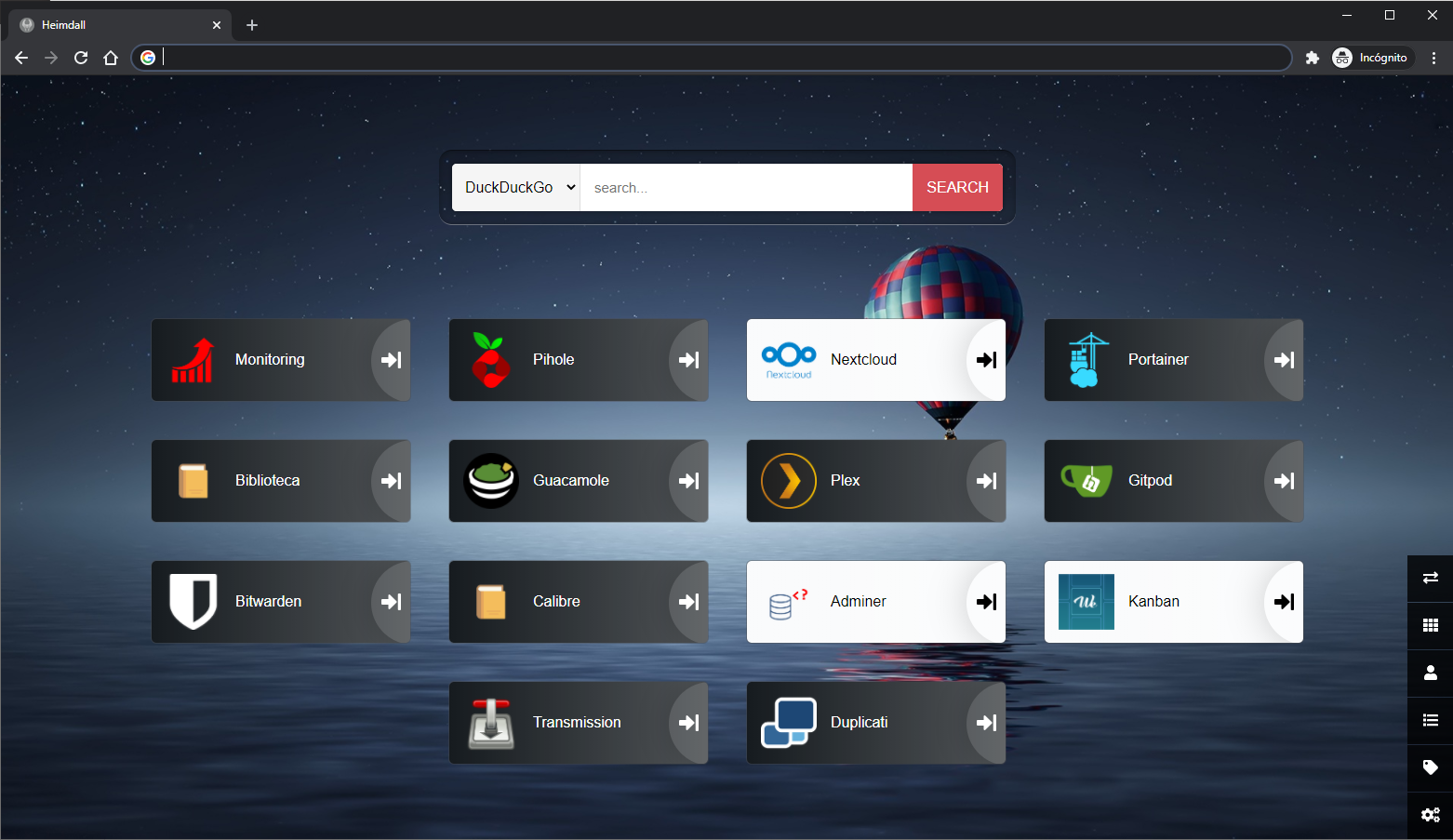
│   ├── dashboards.yml      # Dashboards (Heimdall, Organizr, Homarr)
│   ├── ebooks.yml          # E-book management (Calibre, Calibre-web)
│   ├── nextcloud.yml       # File hosting (Nextcloud + MariaDB)
│   ├── immich.yml          # Photo management (Immich)
│   ├── smarthome.yml       # Smart home (Home Assistant, Zigbee, MQTT)
│   └── media.yml           # Media management (Plex, Sonarr, Radarr, etc.)
├── config/                 # Persistent data for all services (gitignored)
├── scripts/                # Helper scripts
│   └── Makefile            # Common operations (up, down, update, logs, etc.)
├── .env.example            # Environment variables template
└── README.md
- Traefik: Reverse proxy with automatic HTTPS certificate management
- Pi-hole: DNS sinkhole that blocks ads and malware
- PostgreSQL: Database for Restyaboard
- Adminer: Database management UI
- Postfix: SMTP relay for sending emails
- SFTP: File transfer server
- Immich: Self-hosted photo and video backup solution with ML-powered features
- Heimdall: Application dashboard
- Organizr: Unified tab interface for all services
- Homarr: Modern dashboard with Docker integration
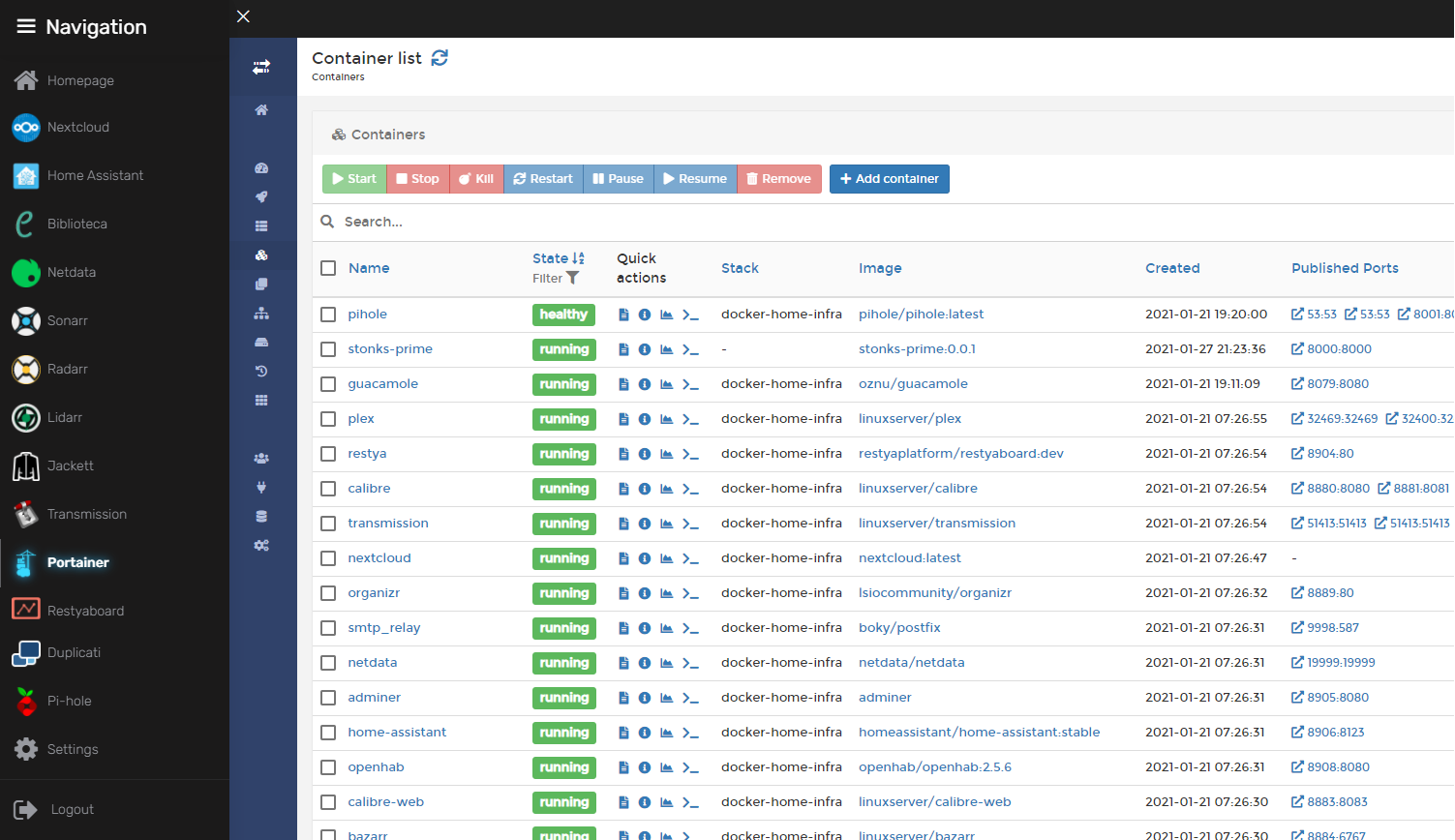
- Portainer: Docker container management UI
- Netdata: Real-time system performance monitoring
- Uptime Kuma: Service uptime monitoring
- Speedtest Tracker: Internet speed history
- Watchtower: Automatic container updates
- Duplicati: Encrypted backup scheduler
- Crontab UI: Web-based cron job manager
- Guacamole: Web-based remote desktop (VNC, RDP, SSH)
- Transmission: BitTorrent client
- Restyaboard: Kanban board
- Calibre: E-book manager
- Calibre-web: Web interface for Calibre library
- Home Assistant: Open source home automation
- Zigbee2mqtt: Zigbee device bridge
- Mosquitto: MQTT broker
- ESPHome: ESP device configuration and management
- Music Assistant: Music streaming server
- Whisper: Speech-to-text for voice control
- Piper: Text-to-speech engine
- OpenWakeWord: Wake word detection
- Plex: Media server and streamer
- Tautulli: Plex monitoring and statistics
- Ombi: Media request management
- Sonarr: TV series manager
- Radarr: Movie manager
- Lidarr: Music manager
- Bazarr: Subtitle manager
- Jackett: Torrent indexer proxy
- Open WebUI: Chat interface for LLMs
- OpenClaw: Claude AI coding assistant with gateway and CLI (access at
openclaw.${hostname})
- A domain name
- Docker and Docker Compose installed
- Copy
.env.exampleto.envand configure credentials and storage paths - Generate a secure key for Homarr:
openssl rand -hex 32 - Launch the stack:
docker compose up -d
A Makefile is provided in scripts/ for common operations:
cd scripts
make up        # Start all services
make down      # Stop all services
make logs      # Follow logs for all services
make update    # Pull latest images and restart
make status    # Show container status
make help # Show all available commandsThe stack is split into multiple compose files in the compose/ folder. By default, smarthome.yml and ai.yml are included. To enable media services, uncomment the media.yml include in docker-compose.yml:
include:
  - compose/ai.yml
  - compose/smarthome.yml
- compose/media.yml # Uncomment to enableTo disable a specific service without removing it from the compose file, add the DONOTDEPLOY profile:
myservice:
  image: someimage
  profiles:
    - DONOTDEPLOY
  # ... rest of config
Services with this profile will be skipped during docker compose up unless explicitly requested.
Disable the system DNS resolver so Pi-hole can bind to port 53:
sudo systemctl disable systemd-resolved.service
sudo systemctl stop systemd-resolved.service
Edit NetworkManager config:
sudo nano /etc/NetworkManager/NetworkManager.confAdd dns=default under [main]:
[main]
plugins=ifupdown,keyfile
dns=default
Rename the existing resolv.conf and restart NetworkManager:
sudo mv /etc/resolv.conf /etc/resolv.conf.bak
sudo service network-manager restartAdd your domain to config/nextcloud/config/config.php:
- Under
'trusted_domains' - At
'overwrite.cli.url'
For external storage and reverse proxy support, also add:
'check_data_directory_permissions' => false,
'overwriteprotocol' => 'https',OpenClaw connects to Claude AI via your claude.ai session. Configure OPENCLAW_GATEWAY_TOKEN in .env (generate with openssl rand -hex 32) and add your Claude session credentials (CLAUDE_AI_SESSION_KEY, CLAUDE_WEB_SESSION_KEY, CLAUDE_WEB_COOKIE). See the OpenClaw documentation for obtaining these values. The openclaw-cli service uses the DONOTDEPLOY profile—run it manually with docker compose run --rm openclaw-cli when needed.